
Download HDO Box for iOS
To install HDO Box on iPhone or iPad, you will need:
- HDO Box IPA file
- A sideloading tool (such as Sideloadly)
- A Windows or Mac computer
Since the app is not distributed through official Apple channels, always make sure you download files from reliable sources.

Requirements Before Installation
Before starting, ensure your setup meets the following conditions:
Device Requirements:
- Device: An iPhone or iPad running iOS 10 or later.
- Apple ID: Make sure your device is logged into an Apple ID.
Computer Requirements:
- Windows 7+ or macOS 10.0+ device.
- iTunes (Windows version) installed on your computer to establish a proper connection with your iOS device.
- Windows users please make sure you have installed the web version of iTunes & iCloud. You must uninstall the Microsoft Store iTunes & iCloud (if applicable), then install the non-Microsoft Store version from:
- iTunes x64: Download here
- iTunes x32: Download here
- iCloud Web by Apple: Download here
- After successfully installing iTunes and iCloud, restart your computer to start the next step.
- Windows users please make sure you have installed the web version of iTunes & iCloud. You must uninstall the Microsoft Store iTunes & iCloud (if applicable), then install the non-Microsoft Store version from:
- Windows or macOS device
- iTunes installed (non-Microsoft Store version recommended)
- USB cable to connect your device
Additional Tools:
- Sideloadly Tool or similar sideloading software
- HDO Box IPA file. Get file HDO Box iPA from Telegram.
Step-by-Step: Install HDO Box on iPhone/iPad
Follow these steps to install the HDO Box IPA on your iPhone or iPad using a Windows computer:
Step 1 – Connect Your Device
- Use a Lightning or USB-C cable to connect your iPhone/iPad to your Windows PC.
- Open iTunes to ensure your device is recognized correctly.
Step 2 – Install Sideload Tool
- After downloading and installing Sideloadly, open the application.
The main interface will display key details like your device name, iOS version, and connection status.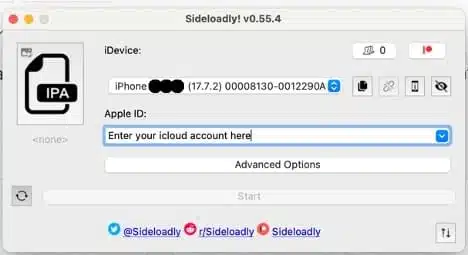
Step 3 – Load IPA File
Click on the “Browse” button in Sideloadly or drag and drop the HDO Box IPA file into the main window.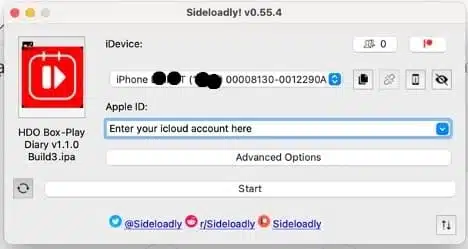
Step 4 – Enter Apple ID
- In the “Apple Account” field, input your Apple ID credentials.
Sideloadly will use this account to sign the IPA file.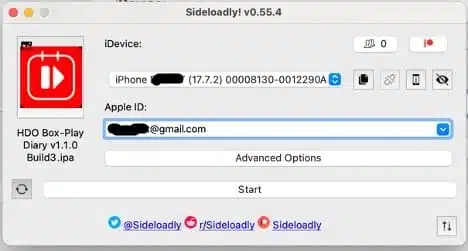
Step 5 – Start Installation
- Click the “Start” button to begin installing the HDO Box IPA.
You may be prompted to enter your Apple ID password for verification. 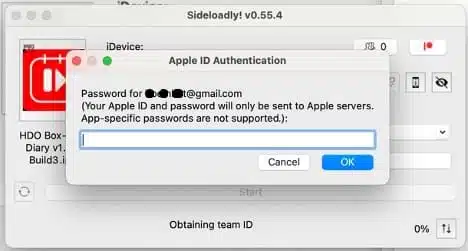
Step 6 – Trust the App
Once the process is complete. 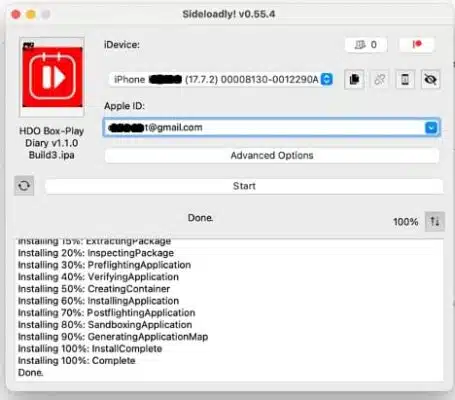
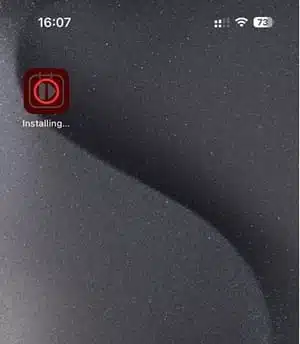
- You’ll see the HDO Box app icon on your device’s home screen.

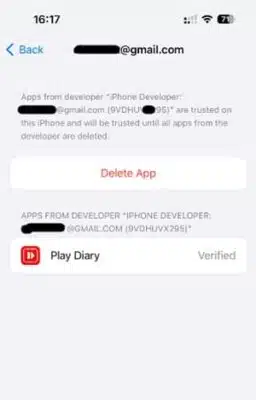
- If you encounter the “Untrusted Developer” error, go to Settings > General > Device Management, locate your Apple ID, and select “Trust.”

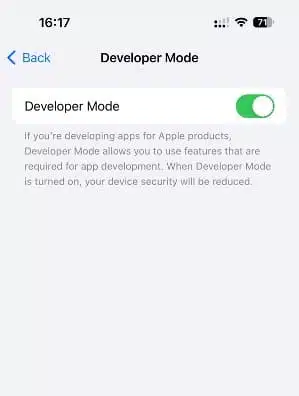
- With Apple’s new iOS/iPadOS versions, users are required to enable Developer Mode to be able to use third-party applications, go to Setting > Privacry & Security > Developer Mode, Switch to On and the device will ask to reboot.

- With these steps, the HDO Box app will be successfully installed on your iPhone or iPad, ready for use. For Android TV devices, download the official HDO Box APK here.
Important Limitations on iOS
Because HDO Box is sideloaded, there are some restrictions:
- 7-Day Expiration (Free Apple ID): If you are using a free Apple ID, the installed app (HDO Box) will only function for 7 days. After this period, you will need to reinstall it using Sideloadly. Users with an Apple Developer account (paid) can bypass this limitation.
- Security Precautions: Always use a dedicated or secondary Apple ID for sideloading apps. This helps protect your primary account’s security and data.
- App Compatibility: Ensure the IPA file for HDO Box is compatible with your iOS version to avoid installation errors.
- Trust the Developer Certificate: If the “Untrusted Developer” error appears, manually trust the developer certificate in Settings > General > Device Management to enable the app to run.
- No App Store Updates: Download the HDO Box IPA file and Sideloadly only from trusted and official sources to prevent potential malware risks.


8 Comments
Iyi
I am final, I am sorry, but it does not approach me. I will search further.
I can’t install on iphone what can i do?
I suggest you to visit a site on which there is a lot of information on this question.
I’ve followed these instructions, the app on my iPhone is Play Diary, not HBO Box? There is no content? Do I need to connect Play Diary to HBO Box to see content? how does this work?
I have followed the instructions but the app on my iPhone is not HBO Box, it is Play Diary. there is no content on the app either, so how do i actually get HBO Box content? Not sure what to do.
awesome
I am sorry, it not absolutely approaches me. Who else, what can prompt?